Planning
Projects
Create a project with a code and a frame rate. The bar along the top is how you move through that production.
A project is one production. It belongs to one organisation, and it holds that production's characters, animation sets, requirements, assets and reviews.
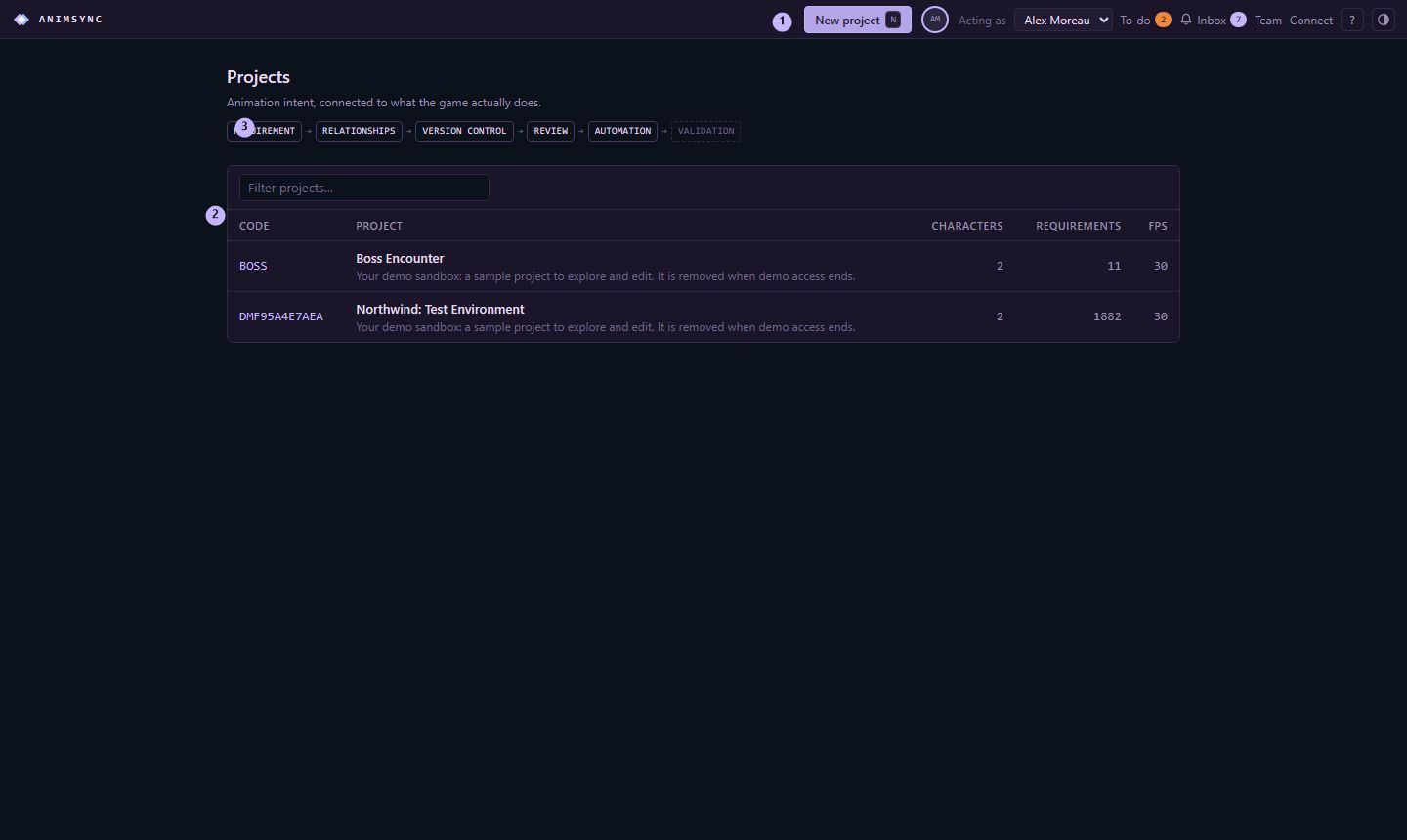
Create one
On the project list, choose New project (or press N).
- Code is a short name such as
BOSS. Publishing uses it:animsync publish <file> --project BOSS --asset NAME. The field stores it in capitals. - Name is the title people read.
- Organisation appears when you belong to more than one. The project is owned by the one you pick.
- Default FPS is the frame rate new timing uses. 30 is the starting value. Change it later in Settings.
- Files chooses where the animation files live. Follow version control watches a repository. AnimSync holds the files keeps each submission in AnimSync as a numbered revision. An administrator can switch this later in Settings.
- Description is optional.
Creating the project opens it.
Move around
The project's code, at the left of the bar, returns to the project home. The rest of the bar is the production:
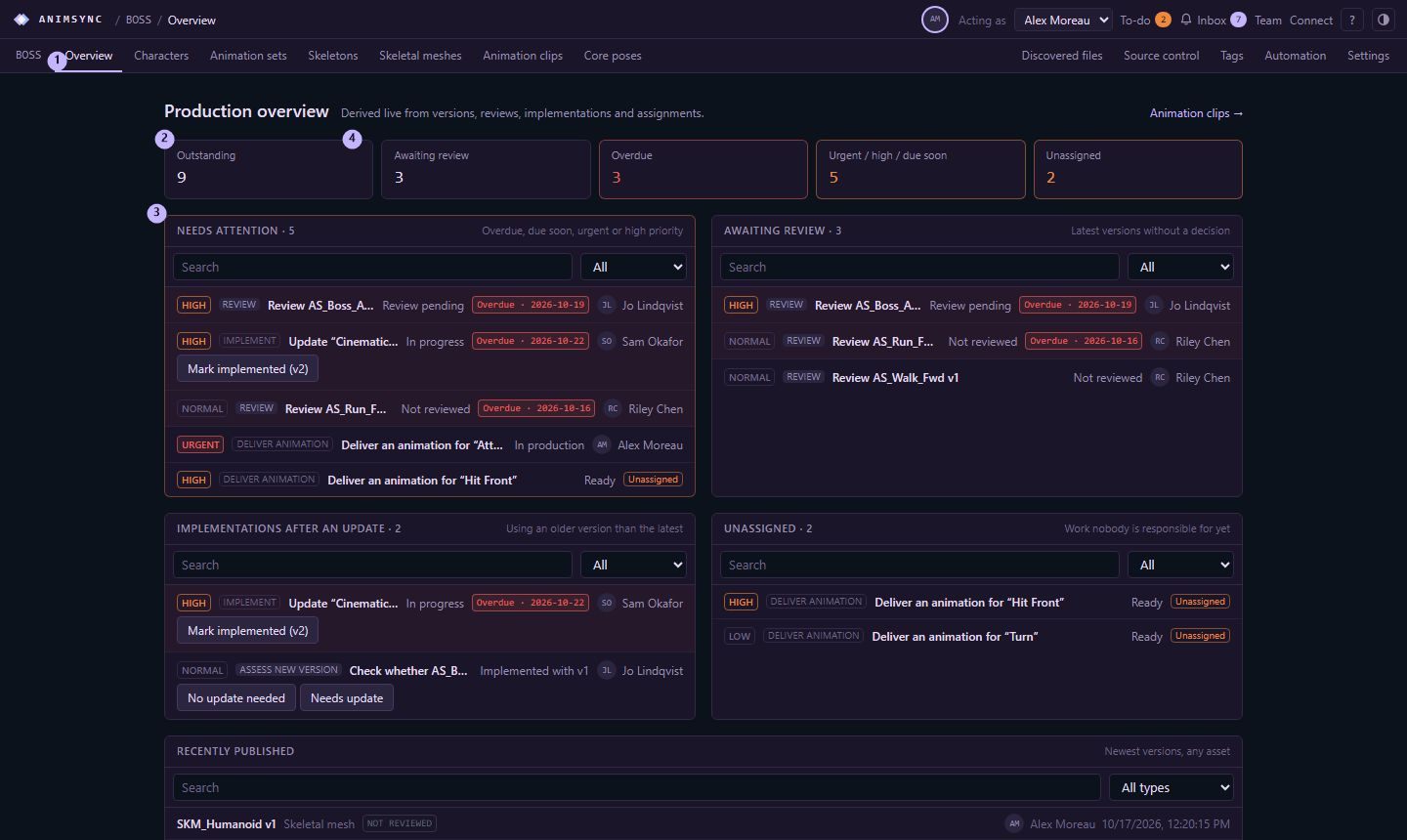
Overview, Characters, Animation sets, Skeletons, Skeletal meshes, Animation clips, and Core poses. Further right sit Source control, Tags, Automation, Costs when that project has costs turned on, and Settings.
Archive
Archiving a requirement, an animation set or an asset takes it out of the active lists. Reviews, decisions and versions stay, and the item can be restored. AnimSync does not throw that history away.