Planning
Requirements
A requirement is one move the game needs. Create it with N, give it a state and a frame count, and make a composed move out of parts.
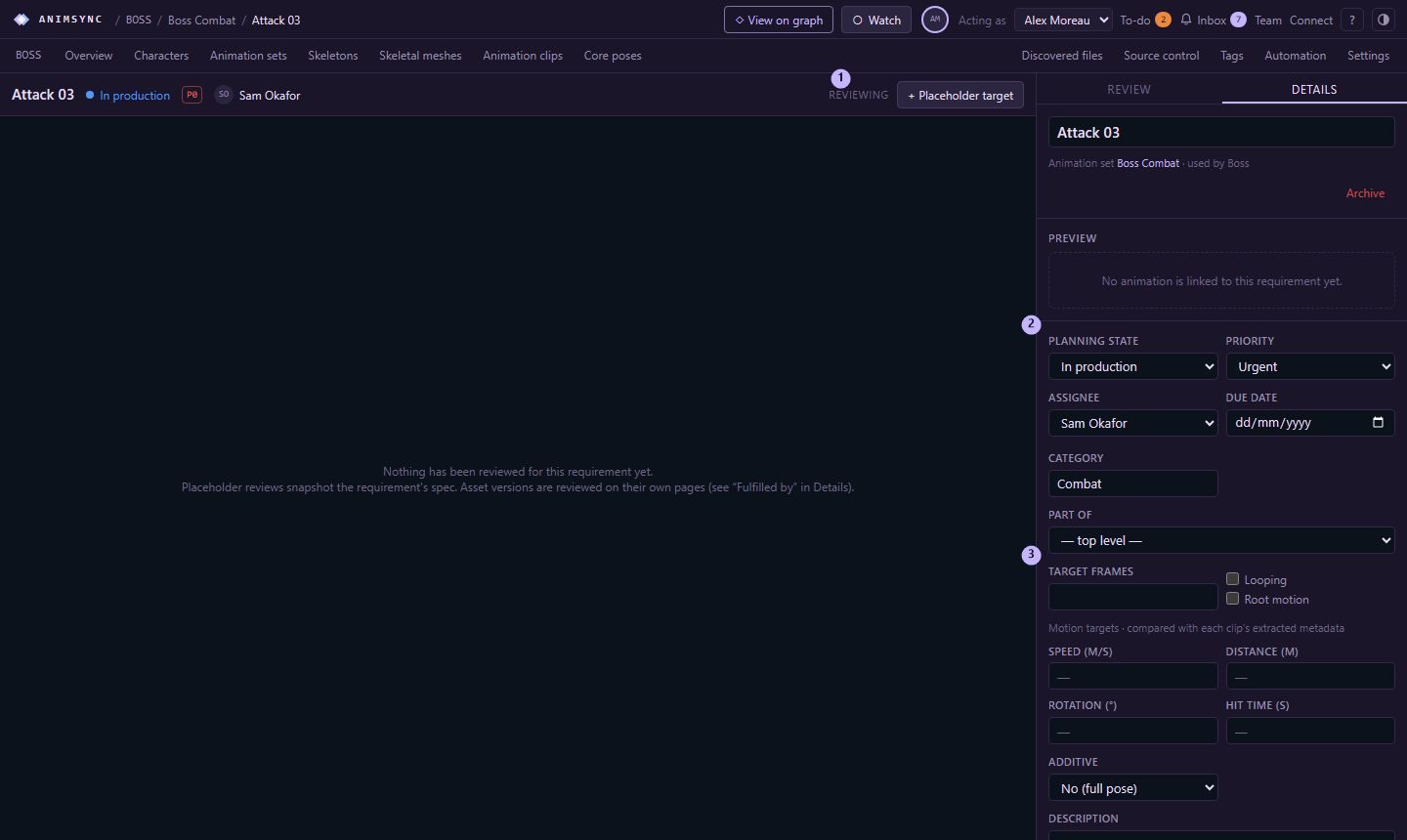
A requirement is one animation the game needs. It can exist before anyone has published a file. An asset fulfils it later. Until then you can still review the planned timing. That review is a placeholder, described in Opening a review.
Create one
On the planning page, choose New requirement or press N. On the graph, the same command can place the new node where you clicked.
What you are creating:
- Animation, one clip to deliver.
- Blendspace, animations placed on two axes and blended.
- Aim offset, one-frame additive poses on yaw and pitch.
- Collection, a group. A transition to or from it applies to every member.
- State machine, states and transitions with their own rules. Opening one shows that machine's own graph.
- Layer, one slot of a layer interface, filled in for this set.
Then:
- Name, unique within the set, such as
Boss_Attack_03. - Animation set, the set that owns it.
- Category, a label such as Combat. Existing categories are offered as you type.
- Part of, when this requirement is a piece of a larger move. Leave it at top level otherwise. "Attack 03" made of Start, Active and Recovery is three requirements, the parts pointing at the parent.
- Planning state: Draft, Ready, In production, On hold, Cut, or Done.
- Priority and Assignee. A lead sets these. Anyone else creates the requirement with the defaults.
- Target frames, how long it should be.
- Description, the gameplay intent.
Select a requirement on the graph or in the list to edit it in the inspector. A lead can also set the due date there. Looping and Root motion are checkboxes on the requirement.
Find and archive
On the graph, Ctrl+F finds a requirement by name, including one that is not drawn. Choosing it selects that requirement and brings it into view. Archiving a requirement takes it off the graph, and its relationships with it. Restoring the requirement brings those relationships back. Ctrl+Z undoes the archive during the visit. Reviews and history stay.